You connect a USB-C cable to your phone, and it charges normally.
You try a different cable that looks almost identical, but charging seems slower. Then you connect a USB-C cable to an external monitor, and nothing appears on the screen.
The plugs are the same shape. So why don’t the cables behave the same way?
The answer is that USB-C describes the connector, not every feature the cable supports.
A USB-C cable can be designed for basic charging and data transfers, high-power laptop charging, fast file transfers or connections that carry video signals. Some cables support several of these functions, while others support fewer.
Understanding these differences can help you avoid buying the wrong cable or replacing equipment that isn’t actually faulty.
What Is USB-C?
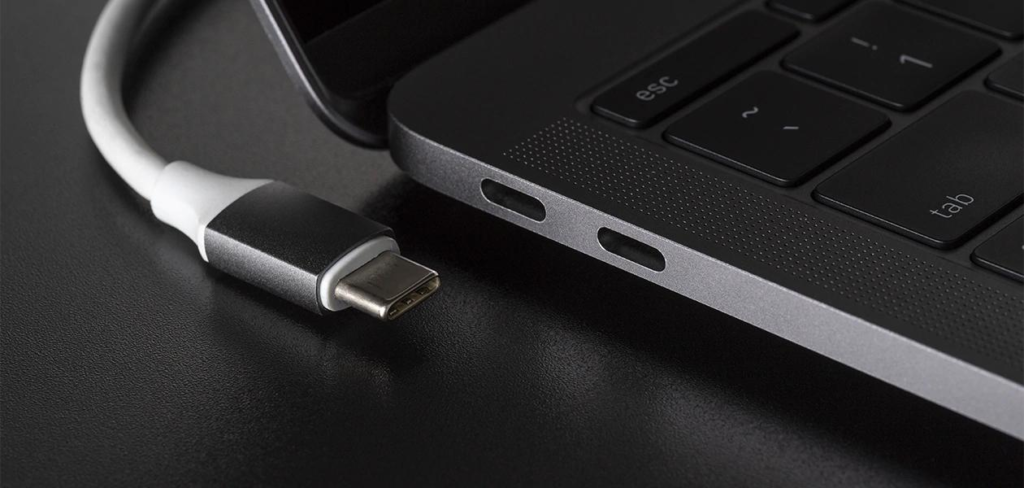
USB-C is a type of connector used on many phones, tablets, laptops, chargers and accessories.
Its most recognisable feature is the small, oval-shaped plug that can be inserted either way up.
Older USB connectors often had different shapes for different devices. USB-C provides a more consistent physical connection.
However, a consistent shape doesn’t mean every device or cable has identical capabilities.
Think of USB-C as the shape of the doorway. What can pass through that doorway depends on the technology supported by the equipment and cable.
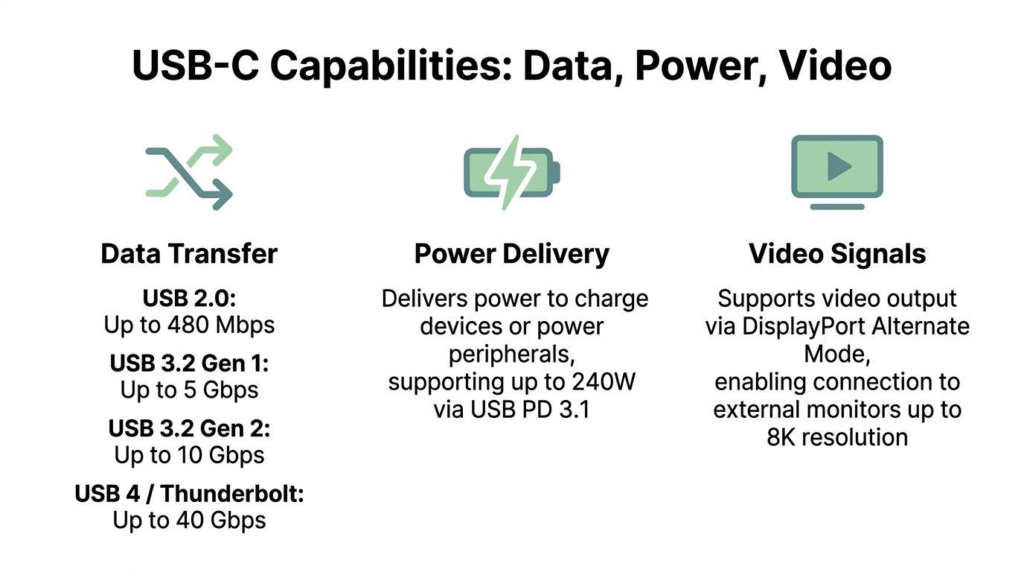
Some connections carry electrical power. Others transfer digital information. Certain compatible connections can also carry video to a monitor.
The important point is that these are separate capabilities.
Three Things That Make USB-C Cables Different
When comparing USB-C cables, there are three main specifications to check:
- Charging power, usually described in watts (W).
- Data transfer performance, often described in gigabits per second (Gbps).
- Video support, which determines whether a compatible connection can carry a display signal.
A cable that performs well in one area isn’t automatically suitable for every other task.
For example, a cable rated for high-power charging may still offer only basic USB 2.0 data-transfer performance.
Likewise, a cable designed for fast data transfers may not meet the power requirements of a particular laptop.
That’s why the phrase USB-C cable alone doesn’t tell you enough.
Why Do Some USB-C Cables Charge Faster?
Charging speed depends on several components working together.
These include:
- The power adapter or charger.
- The device being charged.
- The USB-C cable.
- The charging standards and power levels supported by the connected equipment.
- The device’s current charging conditions, including battery temperature and charge level.
A cable cannot force a charger to deliver more power than it supports.
It also cannot make a phone accept more power than the phone is designed to use.
What Do 60W and 240W Mean?
Watts measure electrical power.
The USB Implementers Forum (USB-IF), which develops USB specifications and certification programmes, uses 60W and 240W markings to identify the power capabilities of certified USB-C-to-USB-C cables.
A 60W-rated cable is suitable for connections that require no more than its rated power, assuming the rest of the equipment is compatible.
A 240W-rated cable is designed to support the higher power levels available through compatible USB Power Delivery equipment.
But there is an important distinction:
A 240W cable does not automatically charge your phone or laptop at 240W.
The charger and device must support the relevant power level, and charging is negotiated between compatible equipment.
Buying a higher-rated cable doesn’t necessarily improve charging speed.
Why Might a Laptop Refuse to Charge?
A laptop may need more power than a particular charger and cable combination can provide.
For example, if a laptop expects a higher-power USB-C input, connecting it to a low-power phone charger may result in very slow charging, a warning message or no useful charging at all.
The cable is only one part of that connection.
Before replacing it, check the laptop manufacturer’s recommended charger specification.
Why Are Some USB-C Cables Slow at Transferring Files?
Two USB-C cables can have dramatically different data capabilities.
A basic cable may support USB 2.0, with a theoretical signalling rate of up to 480 megabits per second.
Other compatible USB connections may support speeds marketed as:
- USB 5Gbps
- USB 10Gbps
- USB 20Gbps
- USB 40Gbps
- USB 80Gbps
These labels identify signalling capabilities, not guaranteed real-world file-copy speeds.
Actual performance depends on the devices, storage hardware, connection and protocol overhead.
A Practical Example: Moving Photos to a Computer
Imagine you want to copy a large collection of videos from a device to an external drive.
With a basic USB 2.0 connection, the transfer could take substantially longer than with a suitable high-speed USB connection.
However, buying a faster cable won’t help if the phone, computer port or storage drive supports only a slower connection.
The complete connection is limited by the capabilities of its components.
Before spending money on a replacement cable, check the data-transfer specifications of both devices.
If you’re deciding between external storage and online backups, our guide to what cloud storage is and how it works explains another way to store and access files.
Can a USB-C Cable Connect a Laptop to a Monitor?
Sometimes, yes.
But the USB-C connector alone does not guarantee video support.
A compatible laptop may send video through its USB-C port using a technology such as DisplayPort Alternate Mode, USB4 or Thunderbolt.
The cable and the display connection must also support the required function.
This explains why a USB-C cable might successfully charge a device but fail to show an image on an external monitor.
What Is DisplayPort Alternate Mode?
DisplayPort Alternate Mode allows compatible USB-C connections to carry DisplayPort video signals.
It is commonly used for connecting laptops to monitors and certain docking stations.
However, not every USB-C port supports this feature.
Even with a suitable cable, a laptop port without the required video capability cannot produce a display signal merely because the connector fits.
Is Thunderbolt the Same as USB-C?
No.
Thunderbolt is a connection technology that uses the USB-C connector on supported devices.
For example, Thunderbolt 4 has defined requirements for data and display capabilities that go beyond simply having a USB-C-shaped port.
A USB-C connection may support Thunderbolt, USB4, another USB data standard or a more limited set of functions.
The connector’s appearance isn’t enough to identify which one you’re using.
How Can You Tell What a USB-C Cable Supports?
The most reliable approach is to check the cable’s specifications.
Look at the packaging, product information or manufacturer’s documentation.
1. Check the Power Rating
Find the supported wattage, such as 60W or 240W.
Compare this with the charging requirements of your device.
Do not assume every USB-C cable supports the highest available USB Power Delivery levels.
2. Check the Data Speed
Look for a clearly stated data rate.
A label such as USB 20Gbps tells you considerably more than a product description that simply says fast USB-C cable.
Remember that Gbps means gigabits per second, not gigabytes per second.
The advertised rate is also not a guarantee that files will transfer at that speed.
3. Check Video Compatibility
If you need to connect a monitor, look for explicit information about video support and compatibility with your laptop or docking station.
Avoid relying solely on descriptions such as high-speed charging cable.
Charging capability does not establish display compatibility.
4. Check the Certification Information
USB-IF operates a certification programme for qualifying USB products and cables.
Certified USB-C cable markings can identify supported power and data capabilities.
You can learn more through the USB-IF cables and connectors guidance.
A cable without a visible certification claim isn’t automatically defective, but a vague or unsupported claim gives you less information when comparing products.
Which USB-C Cable Do You Actually Need?
The right cable depends on what you want to connect.
| Your task | What to check |
|---|---|
| Charge a phone | Compatible charging protocol and sufficient cable power rating |
| Charge a laptop | Manufacturer’s charging requirements, charger output and cable wattage |
| Transfer large video files | Supported USB data rate on the cable and both devices |
| Connect an external monitor | Video support on the computer, cable and display connection |
| Use a docking station | Dock manufacturer’s compatibility and cable requirements |
A basic cable may be perfectly adequate for everyday phone charging.
A faster data cable may be useful when regularly copying large files.
A laptop dock can have more demanding requirements, especially when handling charging, displays and high-speed peripherals together.
The most expensive cable is not necessarily the correct one.
The sensible choice is the cable whose specifications match your actual equipment and intended use.
Does a More Expensive USB-C Cable Work Better?
Not automatically.
A higher price may reflect better construction, certification, more demanding performance specifications or brand positioning.
But none of these factors guarantees that a particular cable will improve the performance of your device.
For example, buying a cable rated for USB 40Gbps won’t transform a USB 2.0 device into a high-speed device.
And buying a 240W-rated cable won’t make a phone charge at 240W.
The most useful information is the manufacturer’s clearly stated specification, supported by appropriate testing or certification.
A Sensible Product to Look For
If you need a replacement for a modern USB-C laptop, consider a clearly labelled, appropriately rated USB-C-to-USB-C cable, preferably with USB-IF certification where available.
Choose the power rating needed by your equipment. If you also want fast file transfers or monitor support, confirm those capabilities separately.
A high-power rating alone is not evidence that the cable supports fast data transfer or video.
Why Does a USB-C Cable Work With One Device but Not Another?
Different devices support different functions.
A cable that works for charging a tablet might not provide everything required by a laptop docking station.
Likewise, an external storage drive may operate with a basic cable but transfer data more slowly than expected.
This doesn’t always indicate a fault.
It may simply mean the cable and devices are operating at the highest level they all support.
However, there are also circumstances where a cable genuinely is faulty.
Possible warning signs include:
- Charging that repeatedly disconnects.
- A connection that only works when the cable is bent or held in a particular position.
- Visible damage to the cable or connector.
- Unusual heat, discolouration or a burning smell.
- File transfers that repeatedly fail with one cable but succeed with another known-good cable.
Stop using a cable that appears damaged or overheats. Do not continue testing equipment that shows signs of burning or electrical damage.
How to Troubleshoot a USB-C Cable That Isn’t Working
Before buying a new cable, try these checks.
Step 1: Identify the Problem
Is the issue related to charging, file transfers or a monitor?
Knowing which function is failing helps narrow down the cause.
Step 2: Check the Device Requirements
Look up the manufacturer’s specifications for the laptop, phone, monitor or accessory.
Check whether the connection requires a particular power level, data rate or video mode.
Step 3: Try a Known-Good Cable
If you already have another suitable cable, test it with the same equipment.
If the problem disappears, the original cable may be unsuitable or defective.
Step 4: Check the Charger or Port
Try a compatible charger or another supported port, where available.
A cable cannot compensate for an incompatible or faulty charger.
Step 5: Inspect the Connection Safely
Check for visible debris or damage.
Disconnect power before inspecting connectors. Avoid using metal objects inside ports.
If a port is loose, physically damaged or overheating, have the equipment assessed rather than forcing the connection.
If your main concern is that your phone runs out of power quickly even after charging, our separate guide explains why phone batteries drain so fast.
Common USB-C Cable Buying Mistakes
One mistake is assuming that USB-C automatically means fast charging.
Another is assuming that any cable with a USB-C connector supports an external display.
Some shoppers also confuse power and data-speed ratings.
A cable’s wattage tells you about its supported power capability. Its Gbps rating describes data signalling performance.
Those figures are not interchangeable.
Finally, avoid buying solely based on words such as premium, universal or ultra-fast without checking what the manufacturer actually specifies.
Frequently Asked Questions
Are all USB-C cables the same?
No. They may have the same physical connector but different charging power, data-transfer performance and video capabilities.
Can any USB-C cable fast-charge my phone?
No. Charging speed depends on the phone, charger, cable and supported charging standards. The device also controls charging according to its operating conditions.
Does a 240W USB-C cable charge faster than a 60W cable?
Not necessarily. A higher power rating only helps where the connected equipment requires and supports that higher level.
Can a USB-C charging cable transfer files?
Many USB-C charging cables can also transfer data, but the supported speeds vary. Some offer only basic USB 2.0 performance.
Why won’t my USB-C cable connect my laptop to a monitor?
The laptop port, cable or display connection may not support the required video function. Check the specifications of all three.
Does USB-C mean Thunderbolt?
No. Thunderbolt can use the USB-C connector, but not every USB-C port or cable supports Thunderbolt.
How do I know whether a USB-C cable is suitable for my laptop?
Check your laptop manufacturer’s charging and connectivity requirements. Compare those requirements with the cable’s rated power, data speed and any required video or docking features.
The Bottom Line
USB-C has made connecting devices more convenient, but it has also created an easy misunderstanding.
Identical-looking connectors do not mean identical capabilities.
A cable may be excellent for charging but limited for file transfers. Another may support high-speed data, while a third may be suitable for a particular monitor or docking station.
Before buying a replacement, check three things:
Power rating, data-transfer speed and video compatibility.
Then compare those specifications with the devices you actually own.
The best USB-C cable is not the one with the biggest number on its packaging. It’s the one that reliably supports the job you need it to do.
Further Reading and Sources
- USB Implementers Forum — Cables and Connectors
- USB Implementers Forum — USB Data Performance Guidance
- Intel — What Is Thunderbolt 4 and How Is It Different From USB-C?
This article provides general educational information. Always follow the charging, cable and accessory requirements provided by your device manufacturer.
Leave a Comment