Slow Wi-Fi can make even a fast internet connection feel frustrating.
A webpage takes too long to load. A video suddenly drops in quality. A video call freezes. One room gets a strong signal while another barely connects.
The obvious reaction is often:
“I need a better router.”
Sometimes you do. But quite often, the router isn’t the first thing that needs replacing.
Wi-Fi performance depends on much more than the advertised speed of your broadband package or the price of your router. Router placement, interference, frequency bands, connected devices, building materials and even nearby networks can all affect your wireless connection.
Before spending money on new equipment, there are several practical things you can try.
Here’s how to improve your Wi-Fi properly — starting with the changes that cost nothing.
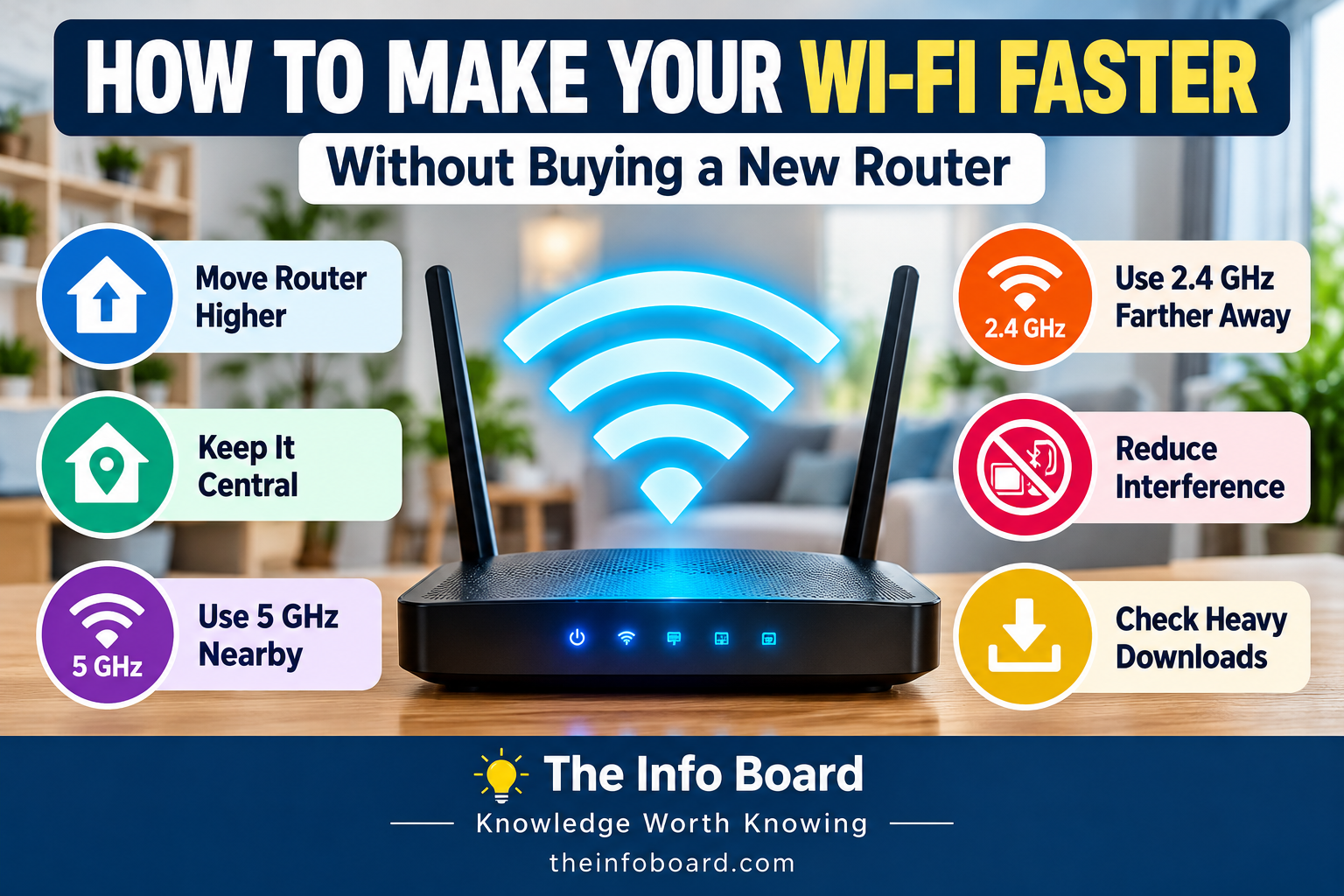
First, Understand the Difference Between Wi-Fi and Internet Speed
Wi-Fi and internet speed are related, but they aren’t the same thing.
Your internet connection is the service coming into your home from your internet service provider.
Wi-Fi is the wireless connection between devices in your home and your router or access point.
That distinction matters.
You could have a very fast broadband connection but poor Wi-Fi in an upstairs bedroom.
Alternatively, you could have an excellent Wi-Fi signal but a slow internet package.
So before trying to fix anything, determine which part is actually causing the problem.
Step 1: Run a Speed Test Near the Router
Start by standing reasonably close to your router and testing the internet connection on a modern phone or laptop.
Then repeat the test in the room where you normally experience problems.
If performance is good near the router but significantly worse farther away, your problem is probably related to Wi-Fi coverage, interference or signal quality.
If performance is poor even close to the router, the issue may instead involve:
- your internet service,
- the router,
- the testing device,
- network congestion,
- or another technical problem.
One speed test isn’t enough to diagnose everything.
Try testing at different times of day before drawing conclusions.
Step 2: Restart the Router
It sounds almost too simple, but restarting network equipment can resolve some temporary problems.
Routers are small computers.
They run software, manage connections and process network traffic continuously.
A restart can sometimes clear temporary faults or restore normal operation.
However, don’t repeatedly restart the router whenever the connection slows down. If you need to do this frequently, there may be an underlying problem that deserves investigation.
Also remember that some routers can take several minutes to reconnect fully after restarting.
Step 3: Move the Router to a Better Location
Router placement can make an enormous difference.
Wi-Fi signals spread outward from the router, so hiding it at one extreme end of the house isn’t ideal when you need coverage everywhere.
Whenever practical, place the router:
in a relatively central position
out in the open
above floor level
away from large obstructions
A router placed centrally can often distribute its signal more effectively throughout the property.
Our Wi-Fi Speed Test: Near the Router vs Another Room
To see whether moving farther from the router affected connection speed, we compared readings in two locations.
| Test location | Measured speed |
|---|---|
| Near the router | 200 Mbps |
| A room farther away | 145 Mbps |
In this test, both locations produced the same measured speed.
This shows that moving farther from a router does not always produce a noticeable speed reduction. However, these two results do not prove that signal strength was identical. Broadband speed limits, building layout, interference and device performance can all affect measurements.
Results in other homes may be different.
A real-world test: I compared internet speed near my router with the speed in a room farther away. Both locations returned approximately 200 Mbps, so this particular test showed no measurable speed difference.
This demonstrates why testing is important. Moving farther from a router does not always produce a noticeable reduction in internet speed. Results depend on the property, equipment, wireless conditions and broadband connection.
A single comparison cannot establish how well Wi-Fi performs throughout an entire home. Repeating tests at different times can provide a more reliable picture.
Don’t Hide the Router in a Cupboard
Routers aren’t decorative, so hiding one inside a cabinet can be tempting.
But surrounding the router with furniture and building materials can weaken its signal.
A router generally performs better in an open position than when buried behind:
- books,
- televisions,
- cabinets,
- boxes,
- or other objects.
You don’t necessarily need to put it in the middle of your living room.
Just avoid unnecessarily enclosing it.
Keep It Away From Large Metal Objects
Metal can strongly affect radio signals.
Large metal objects can reflect or obstruct Wi-Fi signals, potentially creating areas of poor coverage.
Try not to position your router immediately beside:
- metal cabinets,
- large appliances,
- radiators,
- or other substantial metal objects.
Even moving the router a relatively short distance can sometimes improve reception.
Walls Matter Too
Wi-Fi signals can travel through many walls, but they become weaker as they pass through obstacles.
Not all walls affect radio signals equally.
Dense materials such as:
concrete, brick and stone
can cause greater attenuation than lighter interior partitions.
Homes with thick walls may therefore experience more pronounced coverage problems.
Floors between storeys can also reduce signal strength.
That’s why a router that works perfectly downstairs may struggle to provide strong coverage upstairs.
Step 4: Check Whether You’re Using 2.4 GHz or 5 GHz
Many routers support multiple Wi-Fi frequency bands.
Two of the most familiar are 2.4 GHz and 5 GHz.
They have different characteristics.
2.4 GHz
The 2.4 GHz band generally offers:
- longer useful range,
- better penetration through some obstacles,
- but lower potential speeds,
- and greater susceptibility to congestion.
5 GHz
The 5 GHz band generally offers:
- higher potential performance,
- more available channel capacity,
- but shorter practical range,
- and greater attenuation through obstacles.
Neither is universally “better.”
The best band depends on where you are and what you’re doing.
Read:What Happens When You Delete a File? Is It Really Gone?
When Should You Use 5 GHz?
If you’re relatively close to the router and your device supports it, 5 GHz can often provide better performance.
It can be particularly useful for:
- streaming,
- large downloads,
- video calls,
- and other bandwidth-intensive activities.
But move farther away or put several substantial walls between you and the router, and 5 GHz may weaken considerably.
When Can 2.4 GHz Be Better?
For devices farther from the router, 2.4 GHz can sometimes maintain a more usable connection.
It may also be appropriate for devices that don’t need huge amounts of bandwidth, such as certain smart-home products.
The important lesson is that a stronger, more stable connection can be more useful than a theoretically faster but weak one.
What About 6 GHz?
Newer Wi-Fi equipment may also support the 6 GHz band.
This can provide additional spectrum and excellent performance under suitable conditions, but its useful range through walls can be more limited.
Your router and client device must both support the relevant technology.
For most people troubleshooting an existing home network, however, understanding 2.4 GHz and 5 GHz remains an excellent starting point.
Step 5: Check How Many Devices Are Using Your Network
Modern homes can have surprisingly large numbers of connected devices.
Think about everything using Wi-Fi:
- phones,
- laptops,
- tablets,
- televisions,
- game consoles,
- security cameras,
- smart speakers,
- doorbells,
- printers,
- watches,
- plugs,
- lights,
- and appliances.
Having many devices connected doesn’t automatically make Wi-Fi slow.
What matters is what those devices are doing.
A device sitting idle may use very little bandwidth.
A device uploading a huge cloud backup can use much more.
Look for Heavy Downloads and Uploads
Suppose someone starts downloading a large game update while another person is on a video call.
Or a computer begins synchronising thousands of files to cloud storage.
The Wi-Fi itself might be working perfectly.
The available internet bandwidth is simply being heavily used.
Large background transfers can include:
operating-system updates
game downloads
cloud backups
photo synchronisation
software updates
video uploads
If your connection suddenly becomes slow, check what other devices are doing.
Upload Speed Matters Too
People often focus only on download speed.
But upload capacity matters for:
- video calls,
- cloud backups,
- sending large files,
- livestreaming,
- security cameras,
- and remote work.
If one device saturates the available upload bandwidth, other internet activities can suffer.
This can make the entire connection feel slow even when your advertised download speed is high.
Step 6: Disconnect Devices You Don’t Recognise
Your router’s management interface may show a list of connected devices.
Review it occasionally.
If you see something you genuinely don’t recognise, investigate.
Device names aren’t always obvious, so don’t immediately assume an unfamiliar entry is an intruder. Smart devices can appear under manufacturer names or cryptic identifiers.
But if you confirm that an unauthorised device is using your network, change your Wi-Fi password and ensure you’re using modern wireless security.
A strong password helps prevent unwanted access.
Step 7: Check for Wi-Fi Interference
Wi-Fi uses radio frequencies shared by many devices.
Your network isn’t operating in complete isolation.
Nearby Wi-Fi networks can use overlapping or competing channels.
Other electronic devices can also contribute interference in certain frequency ranges.
This is especially relevant to the crowded 2.4 GHz band.
Why Apartments Can Have More Wi-Fi Congestion
Imagine living in an apartment building with dozens of nearby routers.
Your router can detect many neighbouring networks.
Those networks all need to share limited radio spectrum.
Even if everyone has a separate internet connection, their Wi-Fi transmissions can still compete for airtime.
This is one reason wireless performance can vary dramatically between a detached home and a densely populated apartment building.
Step 8: Check Your Wi-Fi Channel
Wi-Fi bands are divided into channels.
Your router may automatically select one.
Often, automatic selection works well enough.
But in a congested environment, channel choice can affect performance.
Some routers periodically assess surrounding networks and select channels automatically.
Others may remain on a crowded channel.
Advanced users can inspect nearby Wi-Fi usage with appropriate network-analysis tools and adjust channel settings if necessary.
But don’t randomly change settings simply because a particular channel number sounds better.
Channel planning depends on the band, regulatory region, channel width and neighbouring networks.
Why Wider Channels Aren’t Always Better
A wider Wi-Fi channel can potentially carry more data.
But wider channels also consume more spectrum.
In a crowded environment, this can increase contention or interference with neighbouring networks.
So maximum channel width doesn’t automatically mean maximum real-world performance.
Wireless networking is often about finding the best balance between:
speed, coverage, interference and stability.
Step 9: Update Your Router’s Firmware
Router manufacturers sometimes release firmware updates to:
- fix bugs,
- improve security,
- improve compatibility,
- or address performance problems.
Some modern routers update automatically.
Others require manual updates.
Check the manufacturer’s official instructions for your exact router model.
Never download router firmware from an untrusted website.
Installing incorrect firmware can cause serious problems.
Read:What Is a VPN and What Does It Actually Do?
Step 10: Update Your Devices
The router isn’t the only device involved.
Your laptop or phone contains its own Wi-Fi hardware and software.
An outdated network driver on a computer can sometimes cause:
- connection drops,
- reduced performance,
- compatibility problems,
- or other unusual behaviour.
Keep operating systems and network drivers reasonably current using trusted update mechanisms.
Step 11: Forget the Network and Reconnect
If one particular device is having trouble while everything else works normally, the issue may be with that device’s saved network configuration.
One simple troubleshooting step is to:
forget the Wi-Fi network
and then reconnect using the correct password.
This forces the device to create a fresh connection profile.
It won’t solve every problem, but it can resolve certain device-specific connection issues.
Step 12: Compare Different Devices
This is an excellent diagnostic technique.
Suppose your laptop gets poor Wi-Fi performance in the bedroom.
Test a relatively modern phone in exactly the same location.
If the phone performs well while the laptop performs badly, the router may not be the main problem.
The laptop could have:
- older Wi-Fi hardware,
- driver problems,
- power-saving settings,
- antenna limitations,
- or software issues.
If every device performs poorly in the same location, coverage becomes a more likely explanation.
Step 13: Use Ethernet Where It Makes Sense
Not every device needs to use Wi-Fi.
If your router and device support wired Ethernet, a cable can provide a very stable network connection.
Ethernet can be particularly useful for stationary devices such as:
- desktop computers,
- televisions,
- game consoles,
- network storage,
- or workstations.
Moving suitable devices from Wi-Fi to Ethernet can also reduce demand on the wireless network.
Wi-Fi is excellent for mobility.
Ethernet is excellent when mobility isn’t required.
Step 14: Don’t Put the Router on the Floor
A router placed directly on the floor is rarely ideal.
Furniture, people and building structures can obstruct or absorb parts of the radio signal.
Putting the router on a desk, shelf or other elevated position can sometimes improve coverage.
You don’t need to mount it on the ceiling.
The goal is simply to give the signal a clearer path.
Step 15: Consider Antenna Position
Some routers have external adjustable antennas.
If yours does, antenna orientation can influence coverage patterns.
There isn’t one universal antenna arrangement that is perfect for every house.
But if all antennas are adjustable, experimenting with their orientation may help in multi-storey environments.
Don’t repeatedly bend antennas beyond their intended range.
Step 16: Check Whether Your Router Is Overheating
Like other electronics, routers generate heat.
Make sure ventilation openings aren’t blocked.
Avoid covering the router with objects or placing it somewhere with poor airflow.
Excessive heat can affect electronics and potentially contribute to instability.
If the router feels abnormally hot or frequently crashes, consult the manufacturer’s guidance.
Step 17: Check Where Your Internet Enters the House
Sometimes the router is in a poor location because that’s where the broadband connection happens to enter the property.
For example, it may be positioned in:
- a corner,
- behind a television,
- beside an exterior wall,
- or on the lowest floor.
If the router cannot easily be moved, other networking solutions may eventually be necessary.
But first identify whether location really is the problem.
Don’t buy equipment before diagnosing it.
Step 18: Test at Different Times of Day
If your Wi-Fi seems fast in the morning but slow every evening, collect some measurements.
Run tests:
in the same location
using the same device
at several times
This can help separate a coverage issue from time-dependent congestion.
If the connection slows dramatically at predictable times even when tested close to the router, your internet service or local network usage may deserve investigation.
Step 19: Don’t Judge Wi-Fi by the Signal Icon Alone
A full Wi-Fi symbol doesn’t guarantee fast internet.
It primarily indicates something about the wireless connection between your device and the access point.
You can have an excellent Wi-Fi signal while the internet connection itself is experiencing problems.
Likewise, a weak Wi-Fi signal can limit performance even when your broadband service is extremely fast.
Always distinguish:
Wi-Fi link quality
from
internet connection performance.
Step 20: Change One Thing at a Time
This is one of the most important troubleshooting principles.
Don’t simultaneously:
- move the router,
- change channels,
- change frequency bands,
- reboot everything,
- alter security settings,
- and reset network configurations.
If performance improves, you won’t know which change fixed it.
Instead:
measure → change one thing → test again.
That gives you useful evidence.
Should You Factory Reset the Router?
Usually not as your first troubleshooting step.
A factory reset can erase:
- Wi-Fi names,
- passwords,
- internet configuration,
- custom network settings,
- parental controls,
- port settings,
- and other configuration.
Only perform a factory reset when you understand how to restore the necessary settings or when your ISP/router manufacturer specifically recommends it.
Restarting and factory resetting are very different operations.
Should You Change Your DNS Server?
Changing DNS can sometimes affect how quickly domain names are resolved, but it doesn’t magically increase your Wi-Fi radio speed.
If the problem is weak wireless coverage in a bedroom, changing DNS isn’t going to make the radio signal stronger.
This is a good example of why diagnosing the actual bottleneck matters.
Should You Buy a Wi-Fi Extender?
Not immediately.
Extenders can be useful in some situations, but they aren’t automatically the best solution.
Depending on how they’re configured and connected, extending a weak wireless signal can still leave you with disappointing performance.
If you’ve already optimised router placement and still have genuine coverage gaps, then it may be worth considering:
- a Wi-Fi extender,
- a mesh Wi-Fi system,
- an additional wired access point,
- or another suitable networking solution.
The correct choice depends on the property.
What Is Mesh Wi-Fi?
A mesh system uses multiple network nodes positioned around a home to provide broader wireless coverage.
Instead of relying entirely on one router to reach every corner, multiple access points cooperate to provide connectivity.
Mesh can be useful in:
large houses, multi-storey homes and properties with difficult construction materials.
But it costs money.
That’s why the free troubleshooting steps should come first.
Read:How Does Wi-Fi Actually Work? A Simple Explanation
When Is It Actually Time to Replace the Router?
Sometimes replacement really is justified.
Consider it if your router:
- is very old,
- lacks support for appropriate modern Wi-Fi standards,
- has persistent hardware problems,
- no longer receives security updates,
- cannot handle your connection speed adequately,
- or cannot provide the coverage/features you reasonably need.
But don’t replace a functioning router merely because one room has poor reception.
A brand-new router placed in the same terrible location can still produce disappointing results.
A Simple Wi-Fi Troubleshooting Order
When your Wi-Fi is slow, use this sequence:
1. Test close to the router.
2. Test in the problem room.
3. Restart the router if appropriate.
4. Improve router placement.
5. Compare 2.4 GHz and 5 GHz where available.
6. Check other devices and heavy network usage.
7. Test another phone or computer.
8. Check firmware and device updates.
9. Investigate channel congestion if necessary.
10. Use Ethernet for suitable stationary devices.
Only after those steps should you seriously consider purchasing additional networking hardware.
The Bottom Line
Slow Wi-Fi doesn’t automatically mean you need a new router.
Often, the problem is caused by poor router placement, distance, walls, interference, network congestion, frequency-band selection or heavy usage from other devices.
Start by testing your connection close to the router and comparing that result with the rooms where performance is poor.
Then improve the router’s position, check which Wi-Fi band you’re using, investigate connected devices and make sure your equipment is up to date.
Most importantly, change one thing at a time and measure the result.
If those steps don’t solve the problem, you’ll at least know much more about the cause — and you’ll be in a better position to decide whether you actually need a new router, mesh system, access point or other equipment.
Sometimes the best Wi-Fi upgrade costs nothing more than moving the router to the right place.
Frequently Asked Questions
Why is my Wi-Fi slow even though I have fast internet?
Your broadband connection and Wi-Fi connection are different parts of the network. Poor signal strength, interference, distance, walls or congestion can reduce Wi-Fi performance even when your internet package is fast.
Is 5 GHz always faster than 2.4 GHz?
5 GHz can provide higher performance under suitable conditions, but it generally has shorter practical range. At greater distances, 2.4 GHz may provide a more stable connection.
Where is the best place to put a Wi-Fi router?
Usually in a relatively central, elevated and open location, away from major obstructions and large metal objects.
Does restarting a router make Wi-Fi faster?
It can resolve some temporary faults, but it isn’t a permanent solution to poor coverage, interference or an inadequate internet connection.
Can too many devices slow down Wi-Fi?
Potentially, especially when several devices are actively downloading, uploading, streaming or backing up data at the same time. Simply having many idle devices connected isn’t necessarily a problem.
Will changing DNS make my Wi-Fi faster?
It may affect domain-name lookup performance in some circumstances, but it won’t improve weak Wi-Fi signal strength or increase the underlying wireless link speed.
Do I need a Wi-Fi extender?
Not necessarily. First optimise router placement and diagnose the problem. If genuine coverage gaps remain, an extender, mesh system or additional access point may be worth considering.